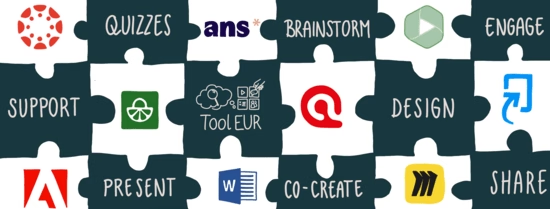

Looking for inspiration on how to use educational applications more effectively in your teaching?
Whether you teach on campus, online or in a hybrid setting, ToolEUR offers a growing overview of educational applications that can support your course design, student interaction, assessment, feedback and collaboration. On each educational tools page, you will find a short explanation of what the tool is, examples of how you can use it in teaching, practical tips, and links to helpful resources to get started.
Our aim is not to replace official manuals, but to help you quickly understand what a tool can be useful for in an educational context and how you might apply it in your own course. You can use the filters or search bar to explore tools that fit your teaching goals, context and level of experience.
We continue to expand this overview and would love to hear from you. Are you already using a tool in a way that works well in your teaching, or do you know a tool that should be included? Share it with us!
Are you looking for advice, do you want to discuss which tool best fits your course, or do you need support in using a specific application in your teaching? Contact us or send an email to cli@eur.nl.
ToolEUR is powered by the Community for Learning & Innovation (CLI)
To select educational applications, use the filters or search bar. The following filters are available:
- Functions: What do you want the tool to help you do in your teaching?
- Access: Will you use the tool inside Canvas, in another online environment, or as a standalone application?
- Difficulty of use: Are you looking for a tool that is easy to start with, moderately complex, or one that needs more guidance before use?
Below you will find more explanation about the filters.
This filter helps you find tools based on the educational activities and tasks they support. This filter categorizes tools according to their primary purpose and the ways they can be used in teaching and learning. Use this filter to identify tools that best match your teaching or learning objectives.
Available filter options:
Brainstorm
The tool supports open idea generation and visual thinking (e.g. whiteboards, sticky notes, live polling that collects ideas).
Tag this when: It is realistic for teachers to use the tool in workshops or classes to collect ideas, sticky notes, or free-form input.
Do not tag when: The tool is mainly a structured assessment or content-delivery platform with little room for free-form contributions.
Collect student work
The tool is used for students to hand in work or activity results in a structured way (submissions, completed tasks, attempts).
Tag this when: The tool is the primary place where students “submit” something (text, files, quiz attempts, recordings, reports).
Do not tag when: The tool only displays information to students, but they do not hand in anything there.
Create materials
The tool is mainly used to author learning resources or activities specifically for your course (e.g. slides, interactive modules, exercises, experimental tasks).
Tag this when: Teachers actively produce new content or activities in the tool for students to use.
Do not tag when: The tool is mainly used to upload, host, or display existing files without much authoring (that is the job of Canvas itself).
Data analysis
The tool is primarily used to analyse data (quantitative or qualitative) beyond simple descriptive statistics.
Tag this when: The tool supports statistical modelling, coding qualitative data, complex reports, or research-level analysis.
Do not tag when: The tool only shows very simple result summaries (basic quiz score overview); that kind of analytics does not qualify as data analysis here.
Typical examples: Atlas.ti, BrainVisionAnalyzer, E-prime, EvaSys, R, SPSS, Stata, Qualtrics
Group collaboration
The tool provides a shared space for student groups (or teachers & students) to work together over time.
Tag this when: The tool is used for file sharing, chat, co-authoring, or managing group tasks for projects.
Do not tag when: The tool is only used for one-off submissions or comments; that is more "Collect student work" or "Peer review".
Peer review
The tool supports structured peer feedback where students review each other’s work using criteria or prompts.
Tag this when: Teachers can set up workflows where students comment on or grade each other’s work.
Do not tag when: Only teachers give feedback; use "Teacher feedback" instead.
Quiz / quick check
The tool supports short checks of understanding or practice, usually with automatically scored questions.
Tag this when: Teachers use the tool to create quizzes, short tests, or in-video questions to check understanding.
Do not tag when: The tool only runs long formal exams or surveys without a clear “learning check” purpose.
Research & writing support
The tool supports literature organisation, source use, citation and academic writing in teaching, supervision or research-based assignments.
Tag this when: The tool helps teachers or students manage references, organise sources, annotate literature, support literature reviews, or produce properly cited academic writing.
Do not tag when: The tool is mainly used for analysing data, collecting survey responses, or general communication and coordination without a clear focus on literature or writing support.
Survey / data collection
The tool is used to collect feedback, opinions, or research data from students or participants. The focus is on data, not on grading.
Tag this when: The main use is course evaluations, research questionnaires, or experience surveys.
Do not tag when: The main purpose is to grade students or give them practice; in that case use "Quiz / quick check" or "Collect student work".
Teacher feedback
The tool helps teachers give structured feedback on student work (comments, annotations, rubrics, scores).
Tag this when: Teachers can review student outputs and respond with comments, grades, or structured feedback in the tool.
Do not tag when: The tool only shows students automated scores or generic messages without teacher involvement.
Teaching coordination
The tool supports teaching-related communication, scheduling, follow-up or academic administration around a course.
Tag this when: The tool is mainly used to organise meetings, appointments, course-related communication, reminders, follow-up actions, or formal administrative processes connected to teaching.
Do not tag when: The tool is mainly used for direct learning activities, classroom interaction, content creation, or student submissions.
Video / audio
The tool is mainly used to record, edit, host, or enhance video/audio for teaching.
Tag this when: Teachers use the tool to record lectures, cut videos, add captions, or host media for students.
Do not tag when: The tool only incidentally contains embedded video (e.g. a platform that can host one video as part of its broader functions).
This filter indicates whether a tool can be used directly within the Canvas learning environment or operates as a separate external application. This helps users understand how the tool fits into their existing workflow and whether additional logins or navigation are required. Use this filter to find tools that align with your preferred level of Canvas integration.
Available filter options:
In Canvas
Teachers can add this tool as an activity directly inside a Canvas course (e.g. via LTI), often with gradebook integration or single sign-on.
Tag this when: The tool appears in Canvas as an assignment, external tool, or module item, and students launch it from within Canvas.
Do not tag when: Teachers only link to the tool via a URL or ask students to use it outside Canvas without grade or activity integration.
Standalone
The tool is primarily used outside Canvas as a separate website, desktop app, or mobile app. Canvas may only link to it.
Tag this when: Teachers or students mostly work in the separate application, and Canvas is only used for links or instructions.
Note: A tool can be both "In Canvas" and "Standalone" when it supports both modes and both are actually used at the university.
This filter shows how much experience, training, or support is typically needed to use a tool effectively. Some tools are intuitive and easy to get started with, while others may require more setup, guidance, or familiarity with specific features. Use this filter to select tools that match the confidence and skill level of teachers and students.
Available filter options:
Easy to use
A first-time user can complete a simple, typical teaching task with little or no training (e.g. by following a short guide or just exploring for 5-15 minutes).
Tag this when: The interface is simple and forgiving, and most teachers can use it confidently after a very short trial.
Typical examples: Simple quizzes in Microsoft Forms, a basic Padlet board, a quick Sendsteps poll, posting messages in Teams.
Moderate
A first-time user can complete a basic teaching task after some orientation (e.g. reading a short how-to or watching a brief video of 20-40 minutes).
Tag this when: The tool has more options and terminology, but teachers can still set up a typical scenario without formal training.
Typical examples: Setting up a standard ANS exam, creating a basic FeedbackFruits peer review, recording and publishing a Panopto video, using Qualtrics for a simple survey.
Needs guidance
For typical teaching use, most teachers benefit from a workshop, consultation, or step-by-step support before using the tool in real courses.
Tag this when: The tool has a steep learning curve, complex workflows, or specialised concepts (e.g. statistical modelling, experimental design).
Typical examples: SPSS, R, Stata, Atlas.ti, E-prime, BrainVisionAnalyzer, advanced Qualtrics surveys, complex Articulate 360 projects.
- Adobe Premiere Pro
- ALEKS
- Amberscript
- Anaconda
- Ans
- ATLAS.ti
- Canvas
- eJournal
- EndNote
- E-Prime
- FeedbackFruits
- Grasple
- Mendeley
- Mentimeter
- Microsoft 365 - Forms
- Microsoft 365 - Outlook
- Microsoft 365 - PowerPoint
- Microsoft 365 - Teams
- Microsoft 365 - Whiteboard
- Miro
- Osiris
- Padlet
- Panopto
- ProctorExam
- Qualtrics
- RStudio
- Sowiso
- SPSS statistics
- Stata
- Statistical package R
- Turnitin
- Zotero
Tools


TeachEUR

Need inspiration or support to design engaging education? On TeachEUR, you will find practical exercises to encourage (inter)active learning and collaboration and a deepdive into various themes.
TestEUR

Need inspiration or support to design high-quality assessment? On TestEUR, you will find a diversity of assessment methods, along with concrete examples, background info, and ready-to-use guidance.
